SplitImageKitImages processed locally.

A SMALL TOOL FOR THE PERFECT SPLIT

Split Image Online

Turn your image into strips or a grid.
Preview the pieces, then save individual PNGs or one ZIP.

1 Choose an image

Up to 16 megapixels and 8,192 px per side.

2 Adjust your split

Split settings

A custom grid, read left to right, top to bottom.

1–20 per direction · 100 pieces maximum

Full-resolution PNGs. Transparency preserved.

Prepare PNGs, then choose where to save.

Your preview

No image yet

See the whole picture.
And every little piece.

Choose an image to start splitting.

FROM ONE IMAGE TO MANY

How to split an image in three steps

  1. Choose your image

    Select or drop one JPG, PNG or WebP. Your file opens in this browser; it is not sent to an image server.

  2. Choose the cuts

    Use Horizontal for stacked strips, Vertical for side-by-side strips, or Grid for rows and columns. Check the numbered preview and each piece’s pixel dimensions.

  3. Download the pieces

    On your phone, choose Continue to save to prepare individual PNGs; the saving step opens automatically. On desktop, use Save images or Download ZIP. Then use Save or share all when supported, or open/download each PNG. Every piece keeps its original pixel size and is numbered from left to right and top to bottom.

Three ways to split the same image

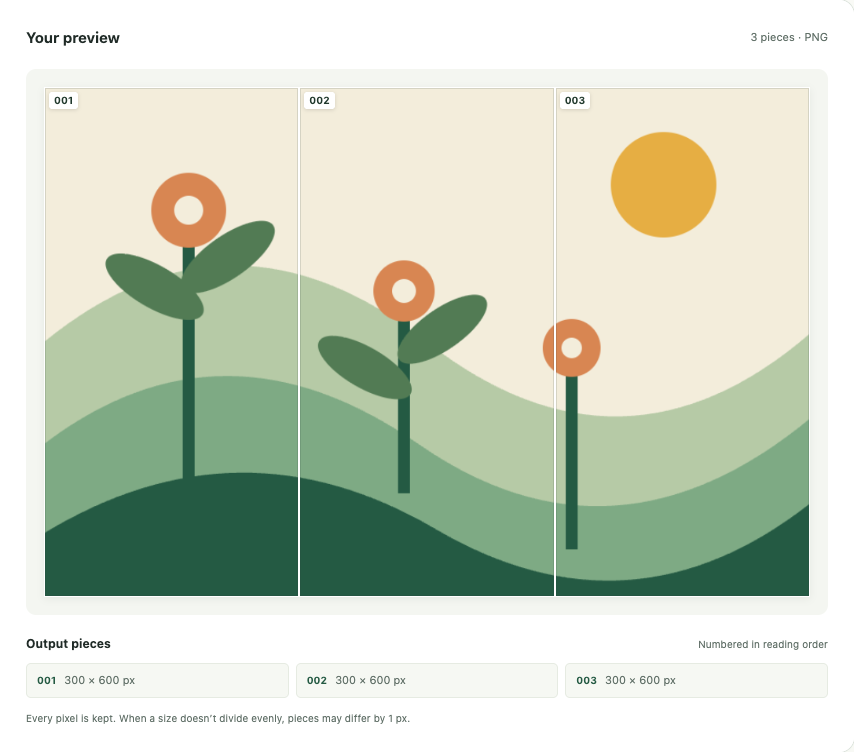
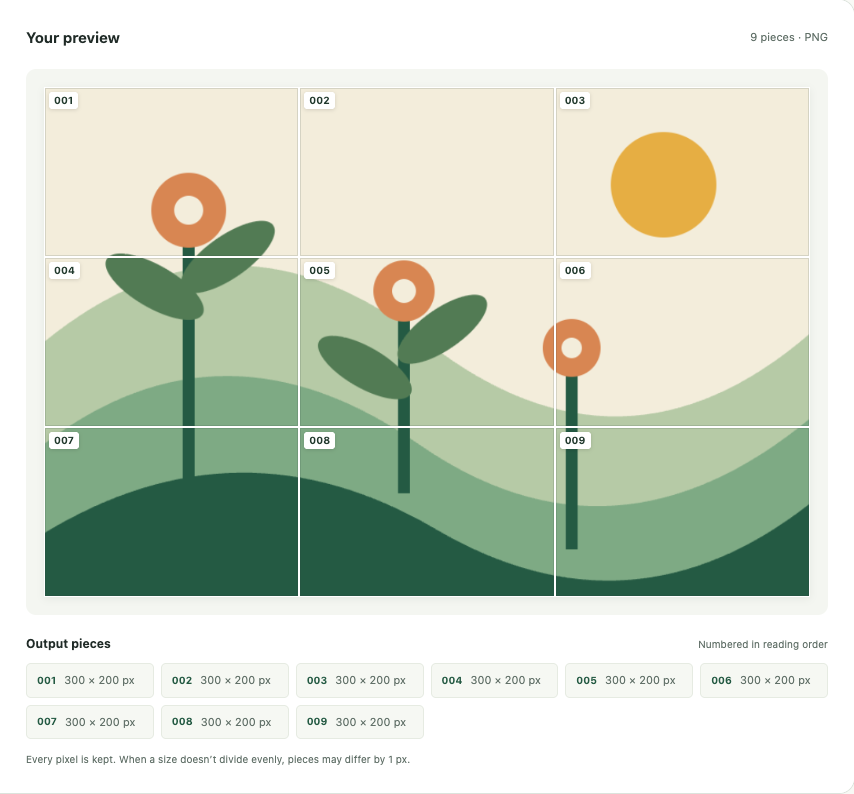
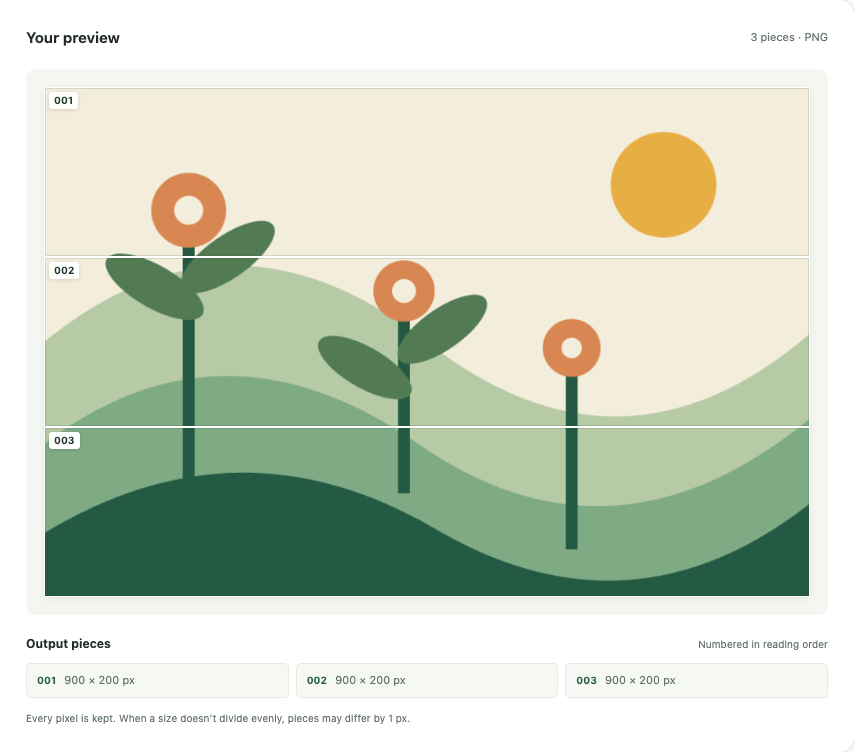
These screenshots show real outputs from this image splitter, using our original 900 × 600 px “Garden study” illustration. The numbered lines are preview guides; they are not added to the exported PNGs.

Open the original example image (PNG)
Actual Horizontal mode preview of Garden study with three numbered stacked strips

Horizontal: three stacked strips

Select Horizontal and enter 3 rows. The ZIP contains 3 PNGs, each 900 × 200 px. The top strip is garden-study_001.png; the bottom strip is _003.png.

Actual Vertical mode preview of Garden study with three numbered side-by-side strips

Vertical: three side-by-side strips

Select Vertical and enter 3 columns. The ZIP contains 3 PNGs, each 300 × 600 px. Numbering runs from the left strip, 001, to the right strip, 003.

Actual 3 by 3 Grid mode preview of Garden study with nine numbered pieces

Grid: a 3 × 3 set

Select Grid, then set both Rows and Columns to 3. You get 9 PNGs, each 300 × 200 px: 001–003 across the top, 004–006 in the middle, and 007–009 at the bottom.

What happens to your pixels?

JPG, PNG and WebP inputs all become PNG pieces. The export uses the decoded image’s original pixel dimensions, even when the preview looks smaller. Existing transparent and semi-transparent areas are preserved; splitting does not remove a background.

Nothing is cropped to make a grid fit. If a dimension is not divisible by the number of cuts, the remainder is distributed across the pieces. For example, a 101 px width split into three columns becomes 33, 34 and 34 px. Each direction differs by at most one pixel.

JPEG orientation is applied by the browser. Original EXIF, other metadata and the original file encoding are not retained. This is a pixel-splitting tool, not a metadata-preserving archive converter.

Formats and practical limits

  • One JPG, PNG or WebP at a time, up to 20 MiB (20 × 1,024 × 1,024 bytes).
  • Up to 16,000,000 pixels, with no side above 8,192 px.
  • 1–20 rows or columns, with at most 100 pieces total. Every piece must contain at least one pixel.
  • Static PNG output only. If an animated PNG or WebP can be decoded, only the browser’s first decoded frame is used.
  • No GIF, PDF, batch processing, resizing or image merging. A device short on memory may need a smaller image or fewer pieces.

Image splitter FAQ

How do I save the images on my phone?

Choose an image to enter the compact split workspace. Adjust rows and columns or use the 3 × 3 shortcut, then tap Continue to save. When the images are ready, the save step opens automatically. If this complete file set is supported, tap Save or share all to open the system panel, then choose an app or save destination. Available actions vary; direct saving to Photos is not guaranteed. Otherwise, open each image and use your browser’s save or long-press option, or download each PNG. ZIP is still available. No automatic series of downloads is started.
What if sharing is cancelled or the set is too large?

Cancellation keeps the prepared images ready for another try. A browser or target app may limit the number or total size of files. The tool sends the full set or shows a fallback; it does not silently leave pieces out. Try fewer pieces, individual PNGs or ZIP. A returned share panel does not prove every image was saved: check the chosen destination.

Does my image get uploaded?

No. Selecting, previewing and splitting your image happen in this browser’s memory. The page has no image-upload request. If you actively use system sharing, the PNG files are handed to the target application you choose; that application may upload or store them under its own policies. Opening the website and its example images still sends ordinary web requests to our hosting provider; see the privacy policy draft.

Will the ZIP contain the white lines and numbers?

No. Those are preview overlays. The downloaded PNGs contain only the corresponding image pixels. Numbers appear in filenames to help you reassemble the pieces.

Can I choose JPG output or a custom size?

Not in this version. Every piece is exported as PNG at its original pixel size. Select the row and column counts to control the cuts; there is no output-format or resize option.

Are all pieces exactly the same size?

Only when both dimensions divide evenly by your settings. Otherwise, integer boundaries keep every edge pixel, with at most a one-pixel difference per direction.

Can I return later to finish a split?

This version does not save your image or split settings to browser storage or an account. Reloading the page means choosing the image again. PNGs and ZIPs you download remain on your device until you remove them.

Why did an export fail?

Check the file and piece limits above, use whole-number settings, and make sure no piece is empty. If your browser runs out of memory, try a smaller image or fewer pieces. Canvas, createImageBitmap and Blob downloads must be supported by your browser.